
Google Analytics 4 Event-Based Model
Are you a website owner trying to make sense of the Google Analytics 4 event-based model? Don’t worry, we’ve got you covered! In this blog post, we’ll be breaking down the basics of GA4 and how it differs from the Universal Analytics hit-based model. With user properties and events connected to each user, understanding GA4 is easier than ever – so let’s get started!
Google Analytics 4 captures event data in real time, allowing for more detailed and accurate insights into user behavior. An event allows you to measure a distinct user interaction on a website, for example, loading a page, clicking a link or downloading a pdf.
How can you track events in Google Analytics 4?
GA4 is the latest version of Google Analytics. It has a slightly different UI and the reports, tools, and features have been upgraded.
Before you start using Google Analytics, you have to set up an account with a valid email address and add the name, URL, and industry of the website you want to track. It is important that you do this, so that you own the data. If someone else creates the account, the data belongs to them
At this point, you can now invite your developer to your account, and they can take over setting up the account and generating the tracking code that then needs to be added to the head of your website.
Once the code has been added to your site, and verified it it working, your website is now capturing user events and interactions.
When a GA4 Event is captured, it records the event (for example, ‘page_view) and predefined parameters. Everything you send into GA4 is an Event with some Parameters. All google analytics 4 events can have specific parameters and dimensions associated with it. By default, GA4 records the following parameters with every event:
- language
- page_location
- page_referrer
- page_titlle
- screen_resolution
GA4 event parameters measure page-level interactions such as page views, page loads, page titles, and page URLs. and are aside from the five default parameters above are specific to the specific event being tracked
What are the categories of events in GA4?
There are 4 categories of events in Google Analytics 4
- Automatically collected events
- Enhanced Measurement events
- Recommended events
- Custom events
Automatically collected events
These events are automatically collected by default when you set up the google tag on your website
- first_visit. This is the first time a user visits a website
- session_start. When a user engages website and starts a new session
- user_engagement. This event is fired 10 seconds after the visitor has stayed on a page.
Enhanced Measurement events
When you configure a web data stream in Google Analytics 4, you can use Enhanced Measurement to measure enhanced measurement events. It is designed to help marketers get as many events in the reports as possible without requiring complex configuration.
The option to use Enhanced measurement is given in the GA4 Admin >Data Streams and select Datastream.
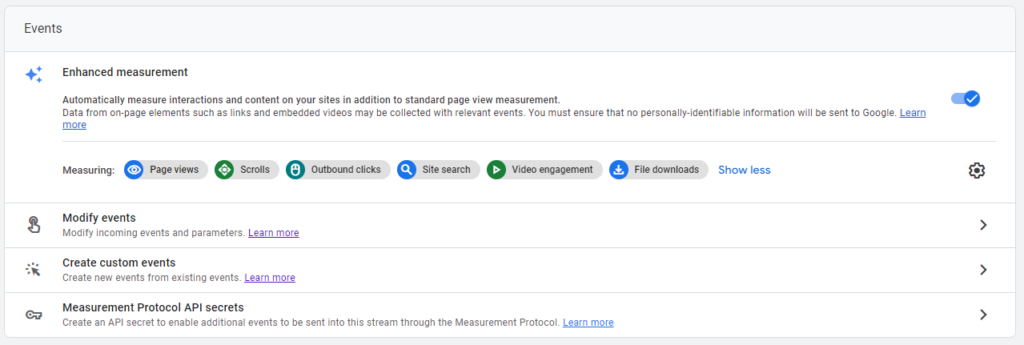
By default, this is enabled and events described in the following google analytics events list are tracked
- Page view (event name: page_view, parameters:page_location,page_)
- Scroll (event name: scroll)
- Outbound link click (event name: click with the parameter outbound: true)
- Site search (event name: view_search_results)
- Video Engagement (events: video_start, video_progress, video_complete)
- File Download (event name: file_download)
- Form interactions (event name: form_start, form_submit)
Recommended events
Adding these google analytics 4 recommended events to your website or mobile app helps you measure additional features and behavior as well as generate more useful reports. Because these events require additional context to be meaningful, they’re not sent automatically.
Google recommends adding these events to all websites
| Event | Trigger when |
| ad_impression | a user sees an ad impression, for app only |
| earn_virtual_currency | a user earns virtual currency (coins, gems, tokens, etc.) |
| join_group | a user joins a group to measure the popularity of each group |
| login | a user logs in |
| purchase | a user completes a purchase |
| refund | a user receives a refund |
| search | a user searches your content |
| select_content | a user selects content |
| share | a user shares content |
| sign_up | a user signs up to measure the popularity of each sign-up method |
| spend_virtual_currency | a user spends virtual currency (coins, gems, tokens, etc.) |
| tutorial_begin | a user begins a tutorial |
| tutorial_complete | a user completes a tutorial |
and for online sales, google recommends the following events are measured. These events populate the E-commerce purchases reports
| Event | Trigger when |
|---|---|
| add_payment_info | a user submits their payment information |
| add_shipping_info | a user submits their shipping information |
| add_to_cart | a user adds items to cart |
| add_to_wishlist | a user adds items to a wishlist |
| begin_checkout | a user begins checkout |
| generate_lead | a user submits a form or a request for information |
| purchase | a user completes a purchase |
| refund | a user receives a refund |
| remove_from_cart | a user removes items from a cart |
| select_item | a user selects an item from a list |
| select_promotion | a user selects a promotion |
| view_cart | a user views their cart |
| view_item | a user views an item |
| view_item_list | a user sees a list of items/offerings |
| view_promotion | a user sees a promotion |
Custom events
You can create ga4 custom events if you want to track an event that is not tracked in automatically tracked events, enhanced measurement or recommended events.
Google Analytics Events Reporting
Within the Google Analytics dashboard, snapshot reports will provide a quick review of the google analytics 4 event-based model data that has been collected.
On the Admin > Events screen you can see the existing events that are being collected. For example, one event called File_download measures the download of a pdf. This is an event I am frequently asked for help with tracking.
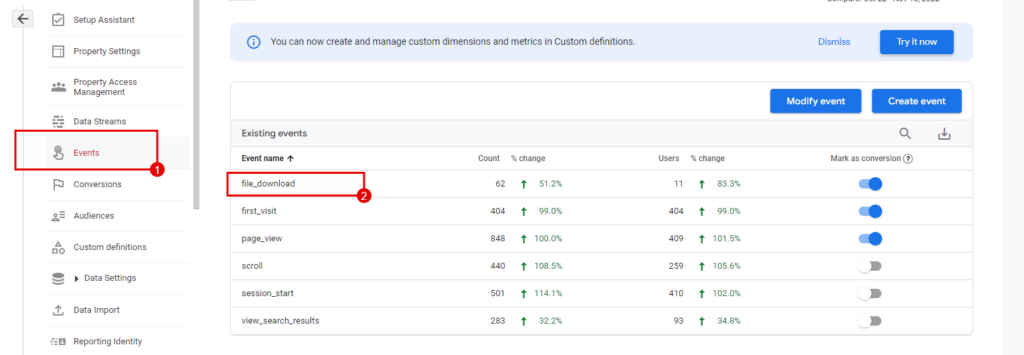
- Click on File_download to visit the page and scroll down to the parameters section.
- Click on the dropdown to select different parameters that are captured for the, for example, file_download event – [file_extension, file_name, link_classes, link_domain, link_id, link_text, link_url].
However, and this is critical, this report only shows real-time results for this data, so you can only see what’s been happening in the last 30 minutes. Bascially you have to tell Google Analytics 4 about the parameters your want to report on. It is necessary to create a custom dimension to put this parameter into a report so you can view it for any time period.
This seems like an unnecessary step because all the data above suggests that the applicable parameters for the File_download event ((link_url, file_name, etc) are being tracked, but, what is not clear is that this data is only stored permanently if requested via custom dimensions. I am assuming that Google is doing this to manage it’s data storage provision
Creating a GA4 Custom Dimension
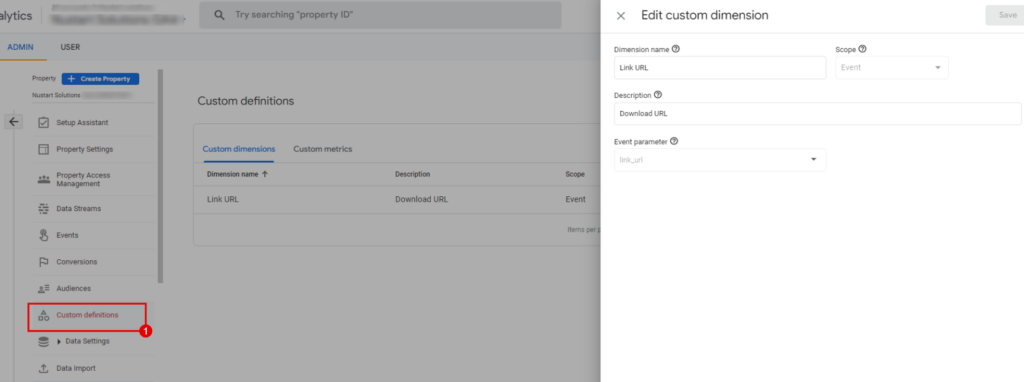
To create a custom dimension to capture event parameters for reporting, first you need to click on Admin > Custom Definitions.
Click Create Custom Dimensions
- Add Dimension name (this will show on the report).
- Leave scope as Event,
- Add a Description
- Choose the Event parameter you wish to report on (link_url for file_download event )
- Click Save to save the dimension and then you will see it is now listed on the list of Custom dimensions.
Note: This custom dimension will be available in Looker Studio (Google Data Studio) reports within about 12 – 24 hours. The data will only be collected and stored when you set up the custom dimension. Therefore it is essential to define your dimensions during your initial Google Analytics 4 setup to ensure no critical data points are missed.
User Properties To Enhance Targeting and Segmentation in Google Analytics
As discussed above, GA4 measures events performed by a specific user. That user has properties (User property / user-scoped dimensions) that are permanently tied to that user. Examples of user properties that GA4 automatically logs are:
- Age
- Country
- Device Category
- Device Model
- Gender
- Interests
- Language
In addition to the predefined user dimensions, you can configure your own user-scoped dimensions by defining up to 25 user properties per Google Analytics 4 property.
This allows for more precise segmentation and analysis of user behavior.
With the event-based model of Google Analytics 4, website owners can take their insights to a whole new level. By combining user dimensions with events tracked on their websites, they can gain an even deeper understanding of user behavior and interests. This enhanced segmentation allows website owners to target specific groups or types of customers more precisely, resulting in improved marketing campaigns and higher conversion rates.
By leveraging user properties within GA4’s event-based model, businesses can learn more about which channels drive conversions most effectively, allowing them to focus their marketing efforts and budget accordingly. Additionally, this data can be used to optimize the user experience through personalized content delivery—another critical factor in driving engagement and increasing loyalty among existing customers.
All in all, understanding how to use user properties combined with events tracking is essential for any business looking to maximize its ROI from Google Analytics 4!
